Linking to VSphere Client from VMware tiles
You can configure VMware Grid tiles to have a link from each line of data to vSphere Client.
The URL you use for row links from SquaredUp to drill down to VCenter will vary depending on whether your data in SquaredUp is scoped to show Virtual Machines, Hosts, Clusters, or Datacenters, as described below.
Virtual Machines
This short video shows the configuration for virtual machines which is described below:
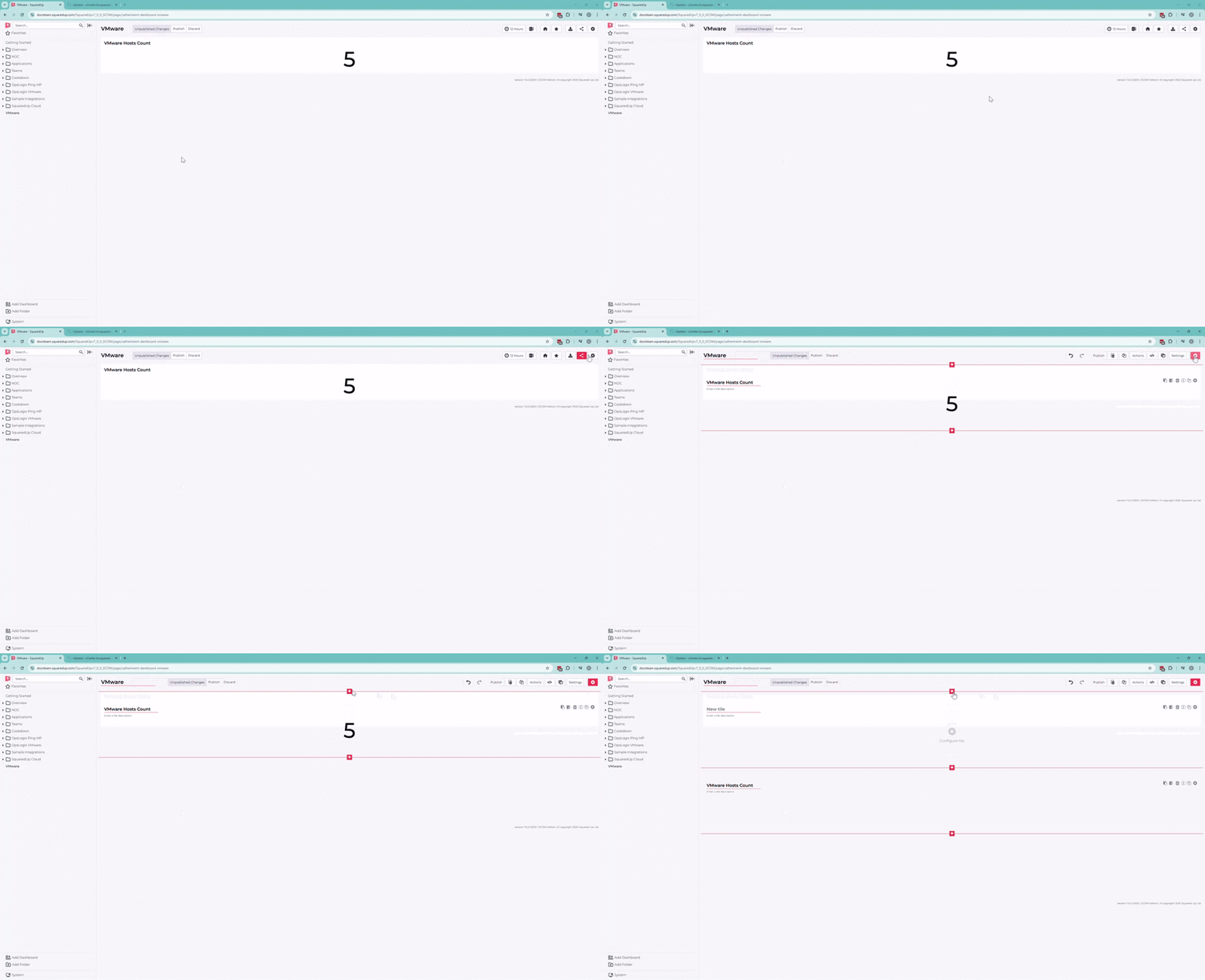
- Scope a VMware grid tile to show some virtual machines:
- Add a new tile.
- Select Integrations > VMware > VMware (Grid)
- Select the VMware provider you have configured.
- In Scope select Virtual Machine.
- Complete the Scope to show some virtual machines.
- Click on the Grid Options section and paste the following into the Row Link box:
https://<your-instance>/ui/app/vm;nav=v/urn:vmomi:{{type}}:{{id}}:<your-vm-GUID>/summary
- Log in to vSphere Client:
- Click on the Hosts and Clusters view (1)
- Browse to a virtual machine in vSphere Client (2)
Take a look at the URL and and make a note of two things:- The IP address or name of your instance at the start of the URL (3)
- The GUID that appears after the last colon
:and before/summary(4)
- In SquaredUp paste the name or IP of your VCenter server and the GUID into the relevant parts of the URL:
https://<your-instance>/ui/app/vm;nav=v/urn:vmomi:{{type}}:{{id}}:<your-GUID>/summary- Replace
<your-instance>with the name or IP address of your VCenter server. - Replace
<your-GUID>with the GUID that appears in the URL. The GUID will be the same for all objects within VCenter. - Don't change {{type}} or {{id}} - SquaredUp will fill these in automatically.
- Replace
Hosts
Use the process described for virtual machines, but instead scope your tile to hosts and use the following URL:
https://<your-instance>/ui/app/host;nav=h/urn:vmomi:{{type}}:{{id}}:<your-GUID>/summary
The GUID is the same as for virtual machines, but the URL now specifies host rather than vm.
Cluster
Use the process described for virtual machines, but instead scope your tile to cluster and use the following URL:
https://<your-instance>/ui/app/cluster;nav=h/urn:vmomi:{{type}}:{{id}}:<your-GUID>/summary
The GUID is the same as for virtual machines, but the URL now specifies cluster rather than vm.
Datacenter
Use the process described for virtual machines, but instead scope your tile to datacenter and use the following URL:
https://<your-instance>/ui/app/datacenter;nav=h/urn:vmomi:{{type}}:{{id}}:<your-GUID>/summary
The GUID is the same as for virtual machines, but the URL now specifies datacenter rather than vm.